This week, we’ve got a raft of ticket management updates to help you keep tickets organized and to cover some of the more common edge cases you may be encountering. Here’s what’s on the docket:
- routing
- merging tickets
- changing requester
- manually creating tickets
Routing
Routing allows you to automatically take an action whenever a new ticket is created. For instance, if you’ve got a VIP account that should be set to a higher priority, or if you want to tag all tickets with billing related terms with “Billing,” or if you want to automatically respond to new tickets when they’re created, you can now do that.
To create a new routing rule, go to App Config > Ticket Management > Routing.
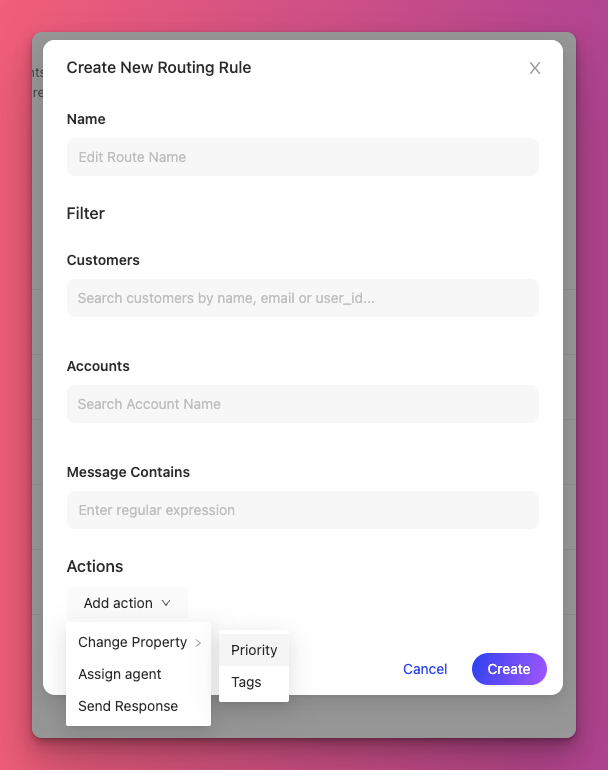
Tickets will be routed according to the first routing rule that applies to them (if any). You can change the order of the routing rules by dragging them up or down in the rules list.
Merging tickets
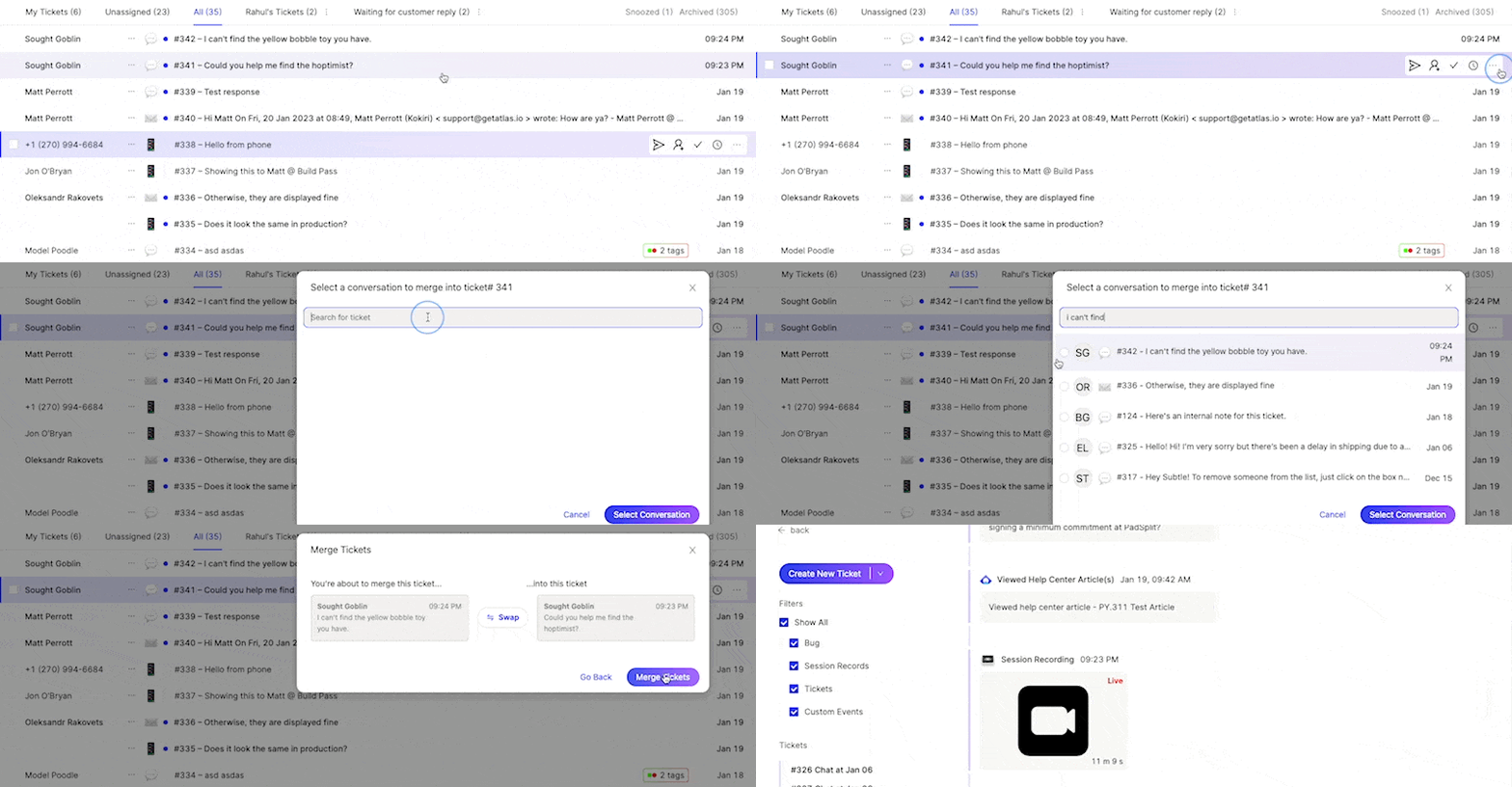
Duplicate tickets happen and can clog up your inbox with double-work. We’ve now introduced ticket merging through the ticket actions menu.
To merge a ticket, find the ticket you’d like to merge a ticket into, click on “…” in the ticket quick actions menu, and then select “Merge Ticket.” From there, you can search for the ticket you’d like to merge into the current ticket and then review the merge before finalizing it.
Changing requester
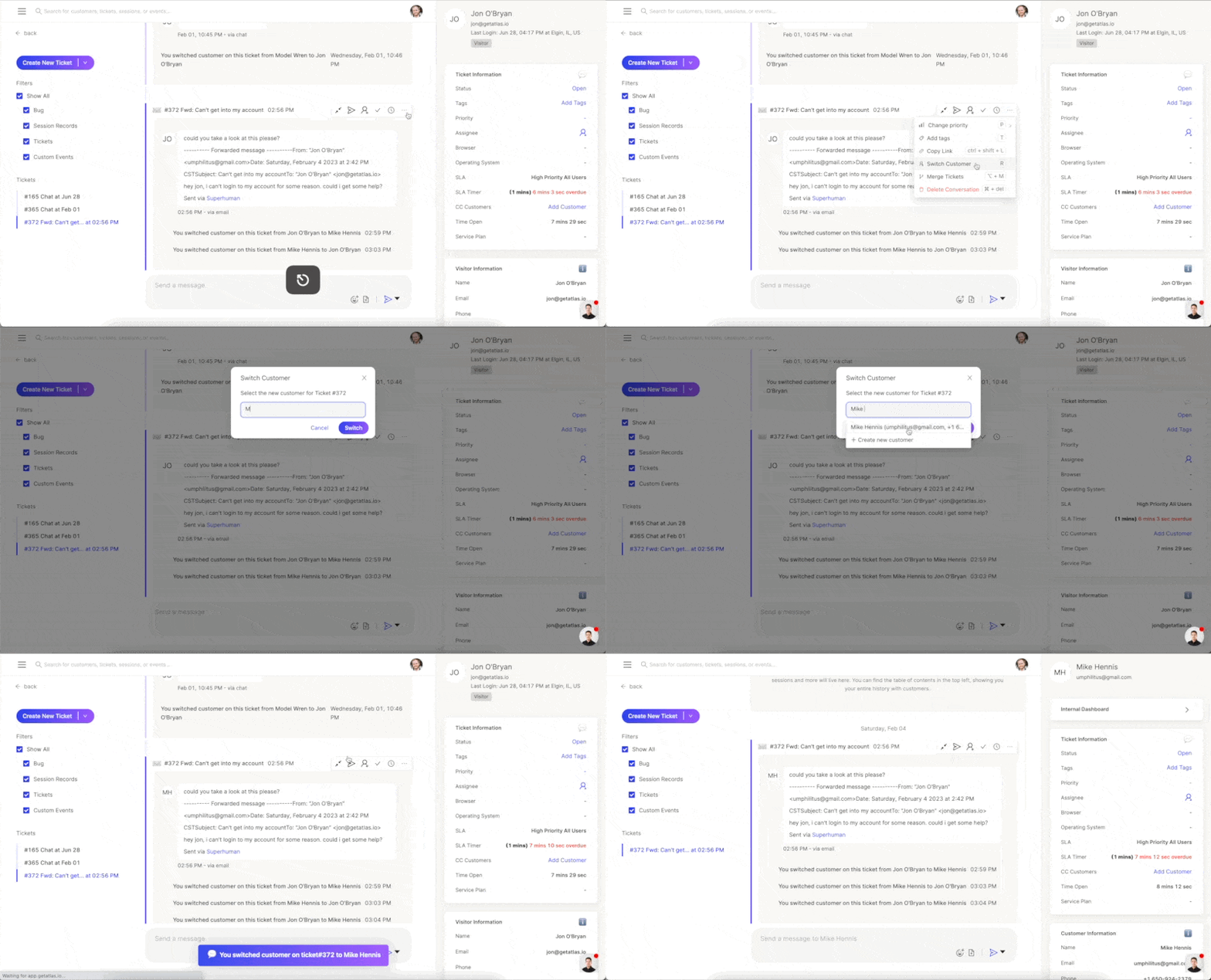
Sometimes your customers don’t know the right person on your team to contact for support and you need to forward an email from a teammate to your support inbox. This messes up the normal flow of things because now you have a ticket associated with a teammate rather than the appropriate customer.
You now have the ability to switch the customer associated with a ticket. To change the requester, click on “…” in the ticket quick actions menu, and then select “Switch Customer” and find the correct customer.
Manually creating tickets
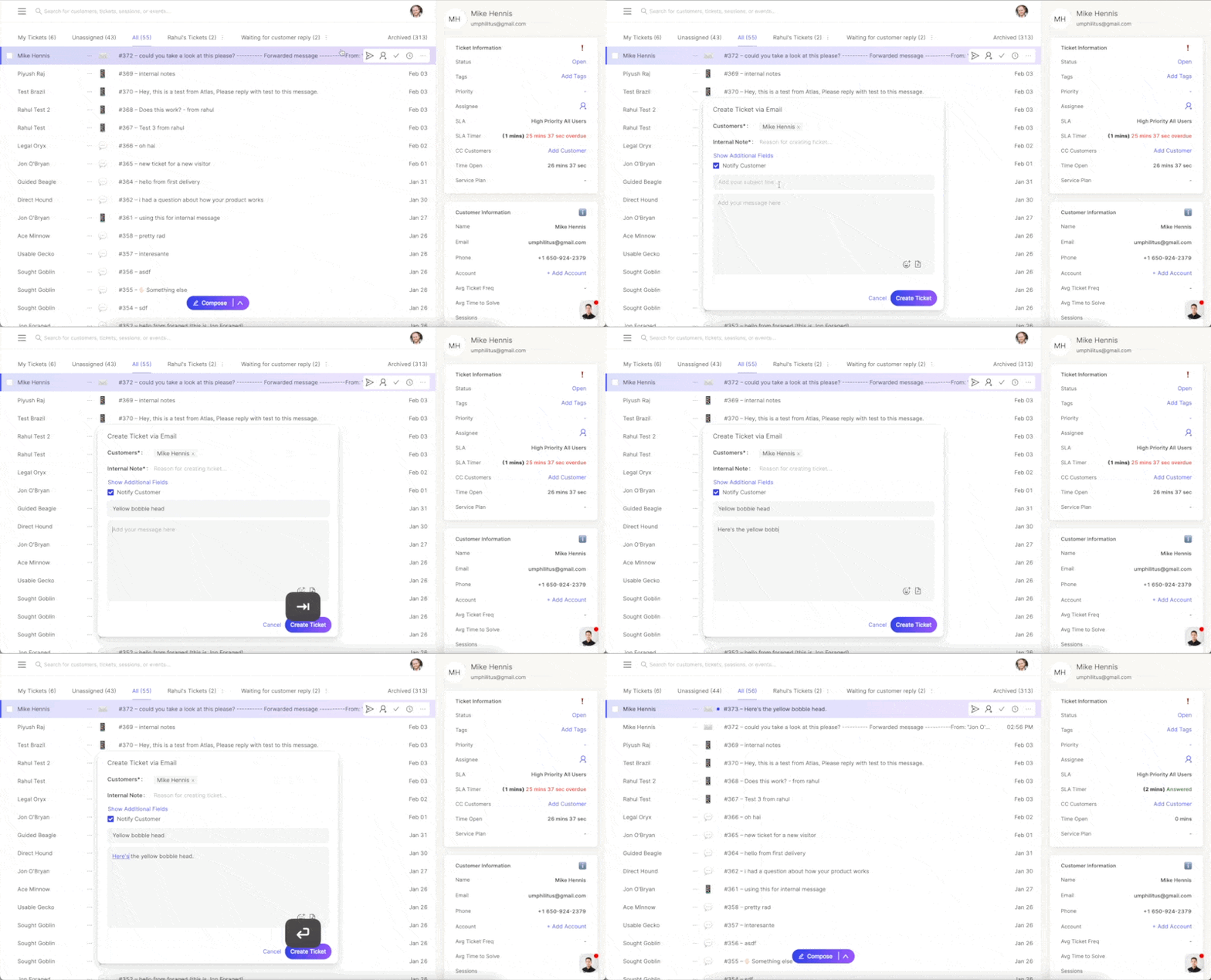
Most support tickets are inbound from your customers. Occasionally, however, you need to be able to start a ticket from your side.
With the composer, you can create a new ticket for a customer directly from the inbox (click on the Compose button at the bottom of the screen or press N ) or from their customer profile.